What This Covers
How to create a new episode for your podcast.
✅ Step-by-Step Instructions
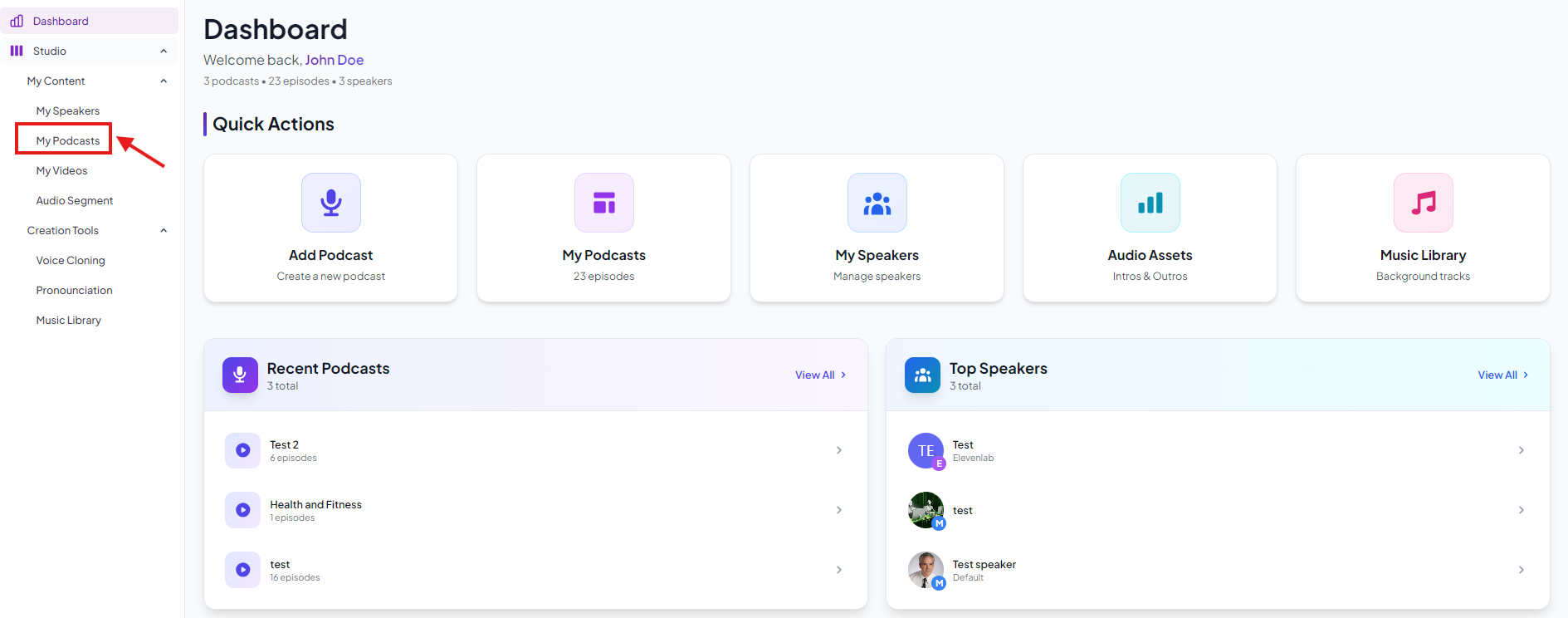
- Once you have created a podcast go to the My Podcasts page from the left navigation bar.
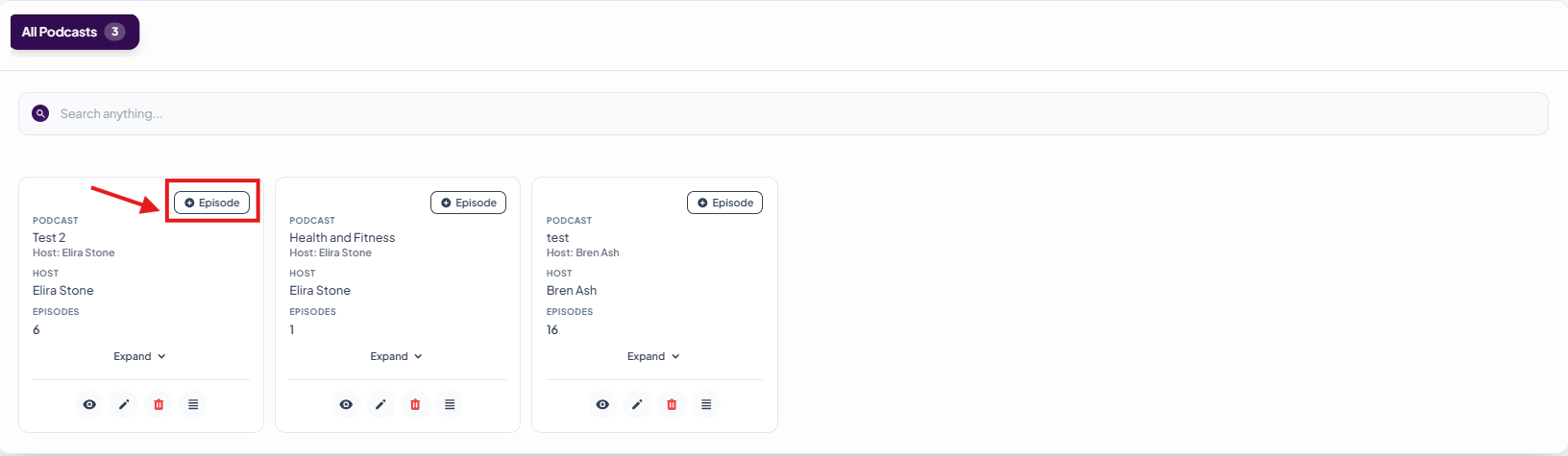
- Click on +Episode beside the podcast you want to create an episode for.
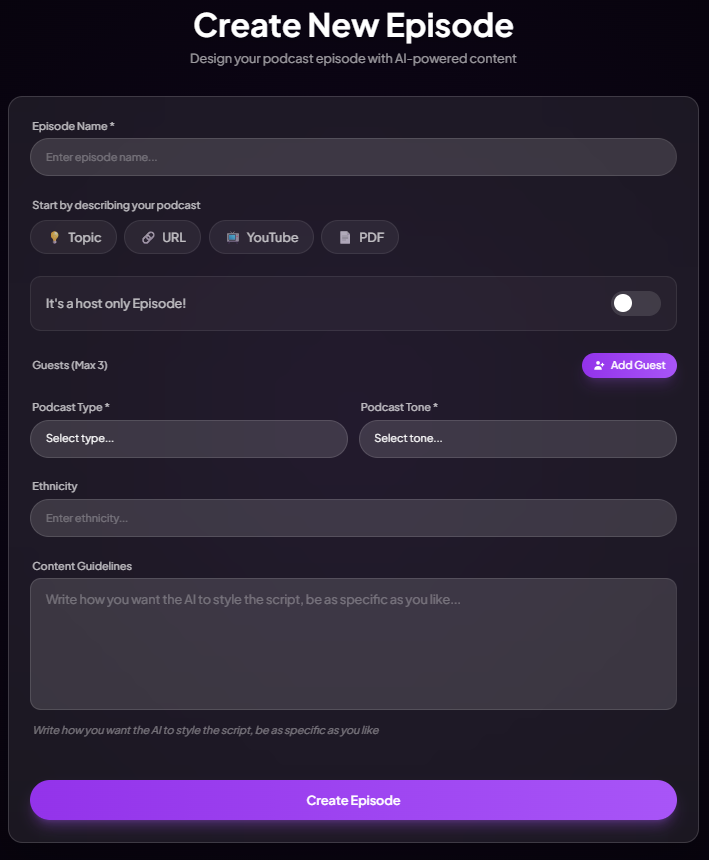
- Add episode name.
- Select a guest (you can add more than 1 guest).
- Select Topic, URL, YouTube or PDF for the inspiration of the podcast episode
- Select podcast rype
- Select tone and click on Create Episode.
- Your episode is now generated. Click on Episodes button to view the episodes.
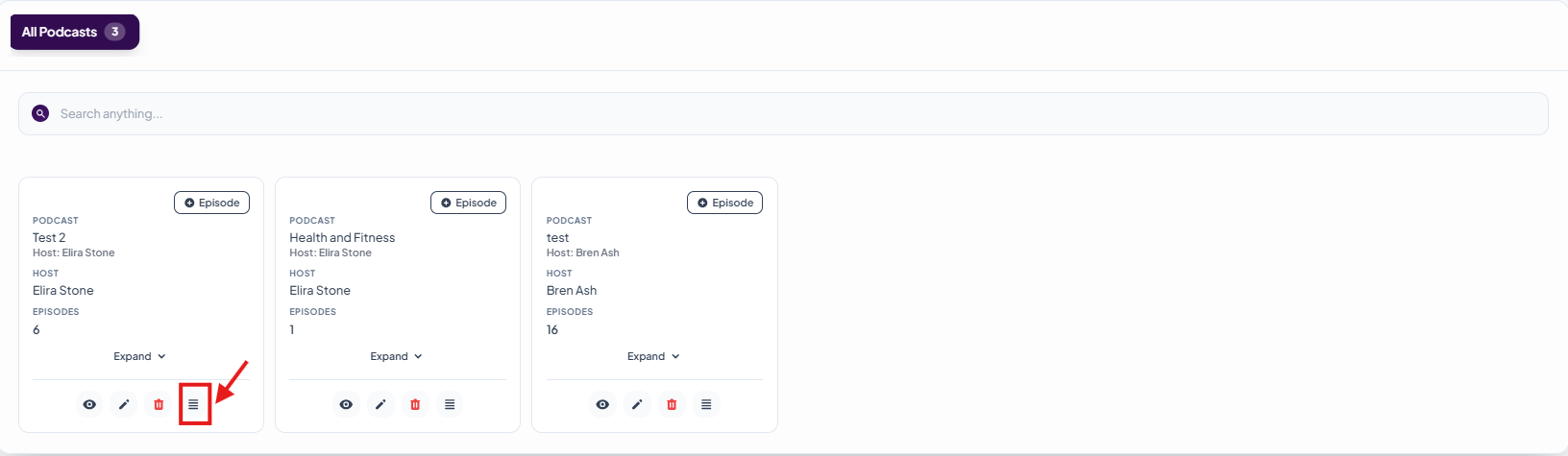
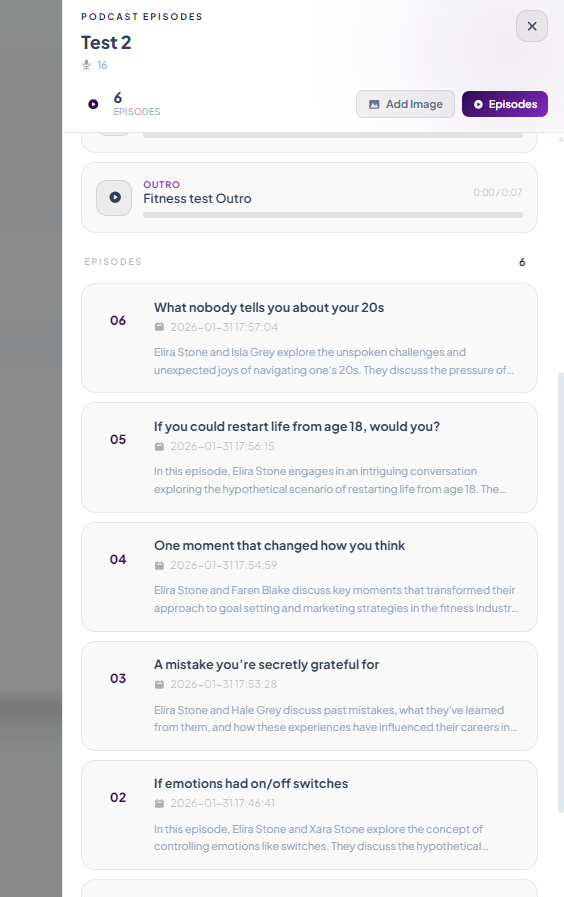
- List of episode will open, now click on the episode you have just created.
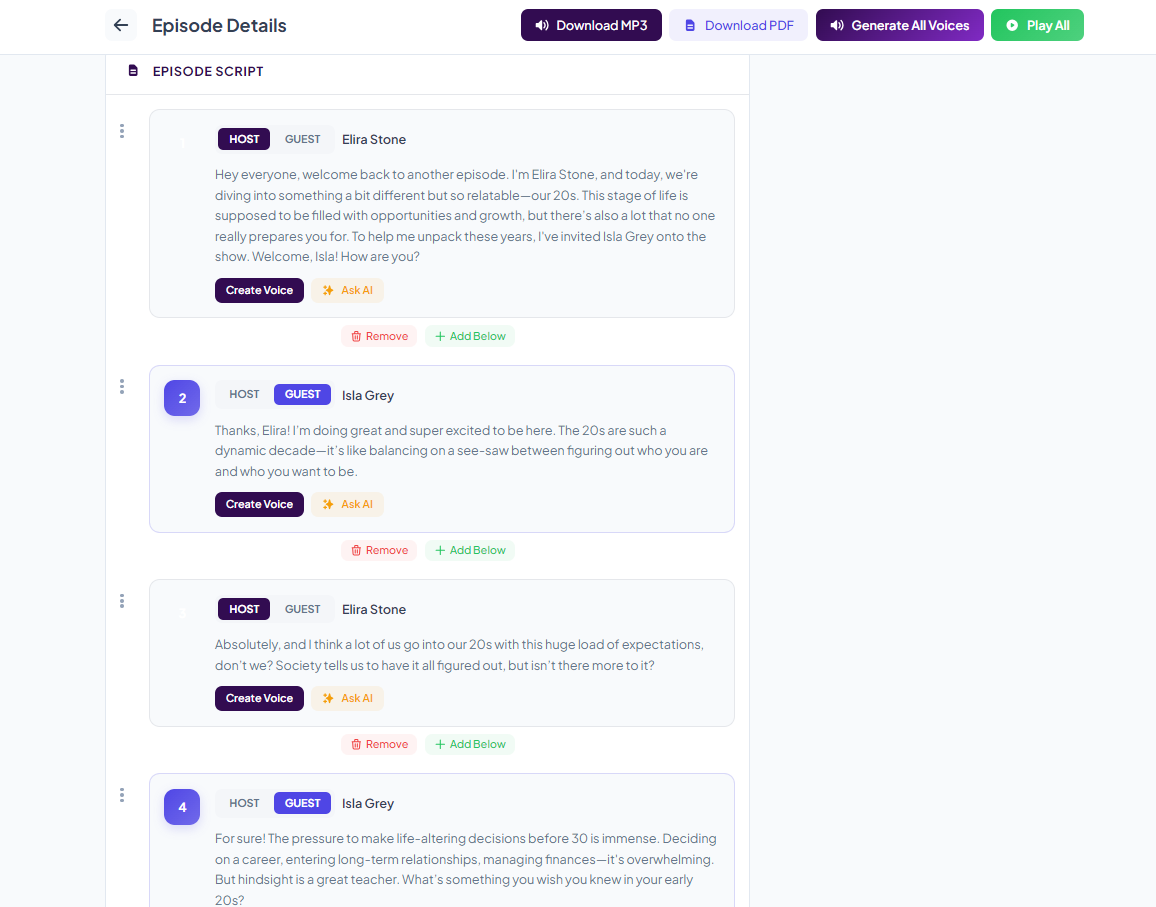
- All the generated dialogues will appear. You can make any changes to any dialogues by simply hoveing on the dailoug a click to eidt button will appear click on it to edit the dailouge.
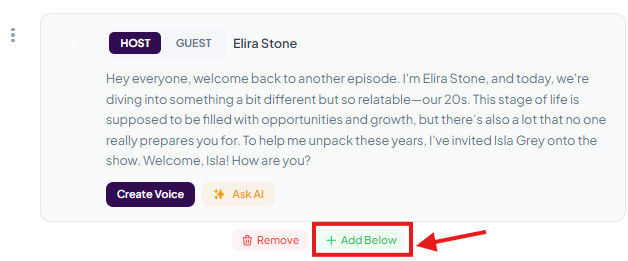
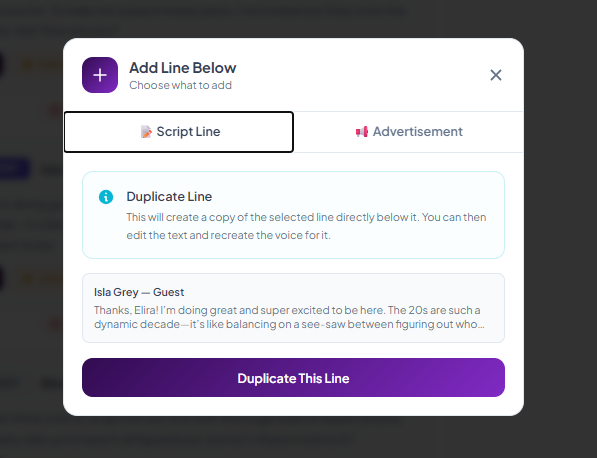
- You can also add a line or an advertisement by clicking on the +Add Below icon beneath the dialogue you want.
- A popup will appear. Click on Duplicate This Line.
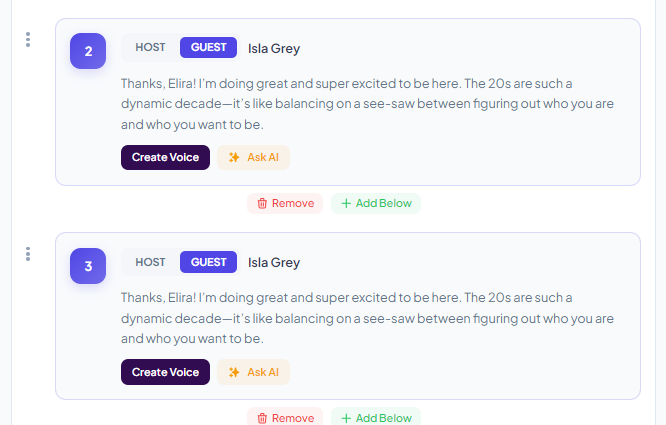
- Now the dialogue is duplicated, you can edit the text of the duplicate dialogue.
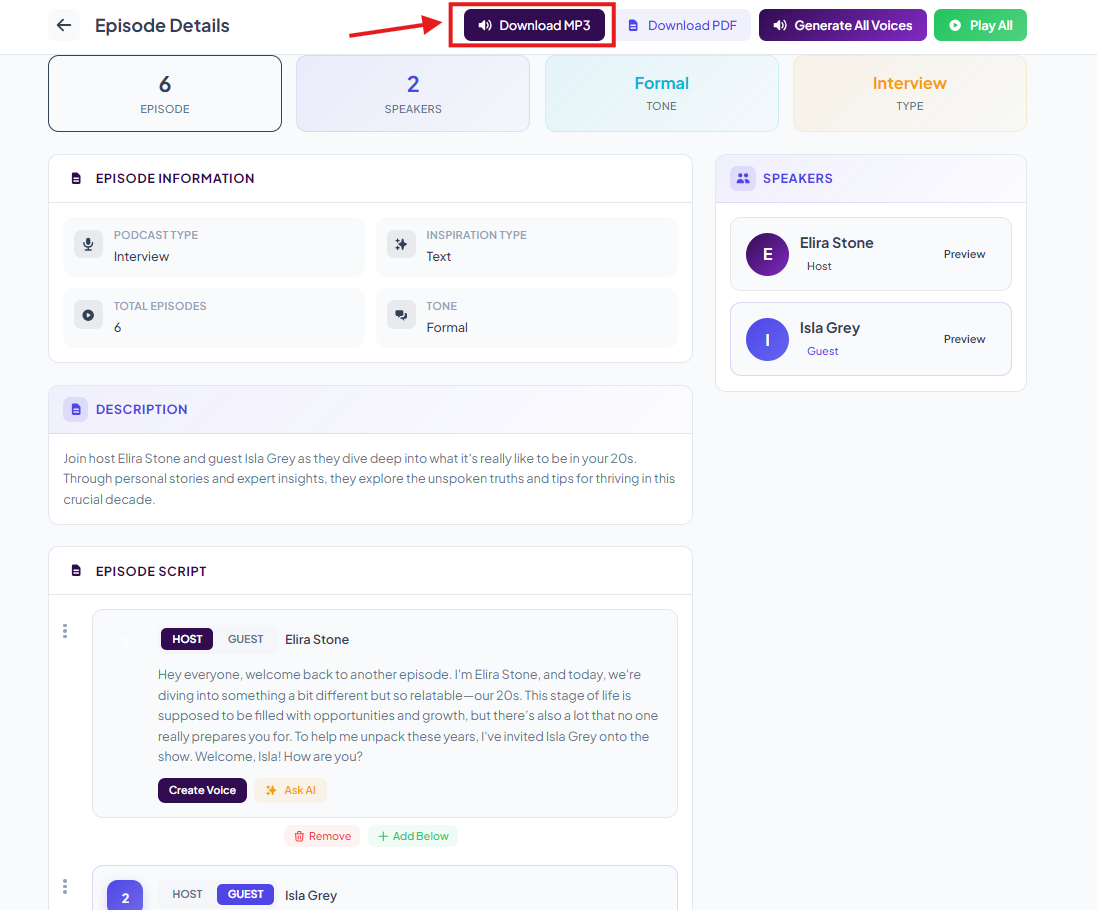
- Once you have are done with the changes (if any), you can now generate the voices by clicking on the Generate All Voices.
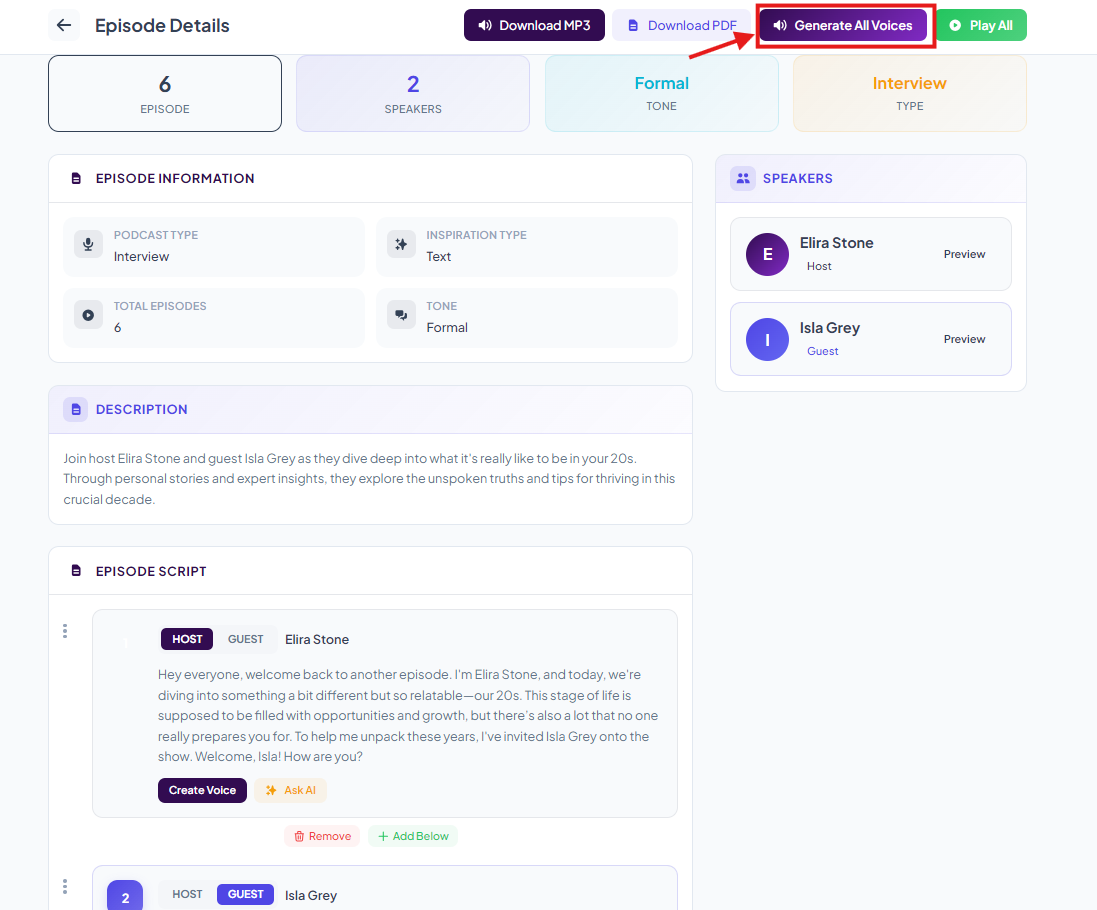
- Your audio podcast is now ready, you can download it by clicking on the download button.